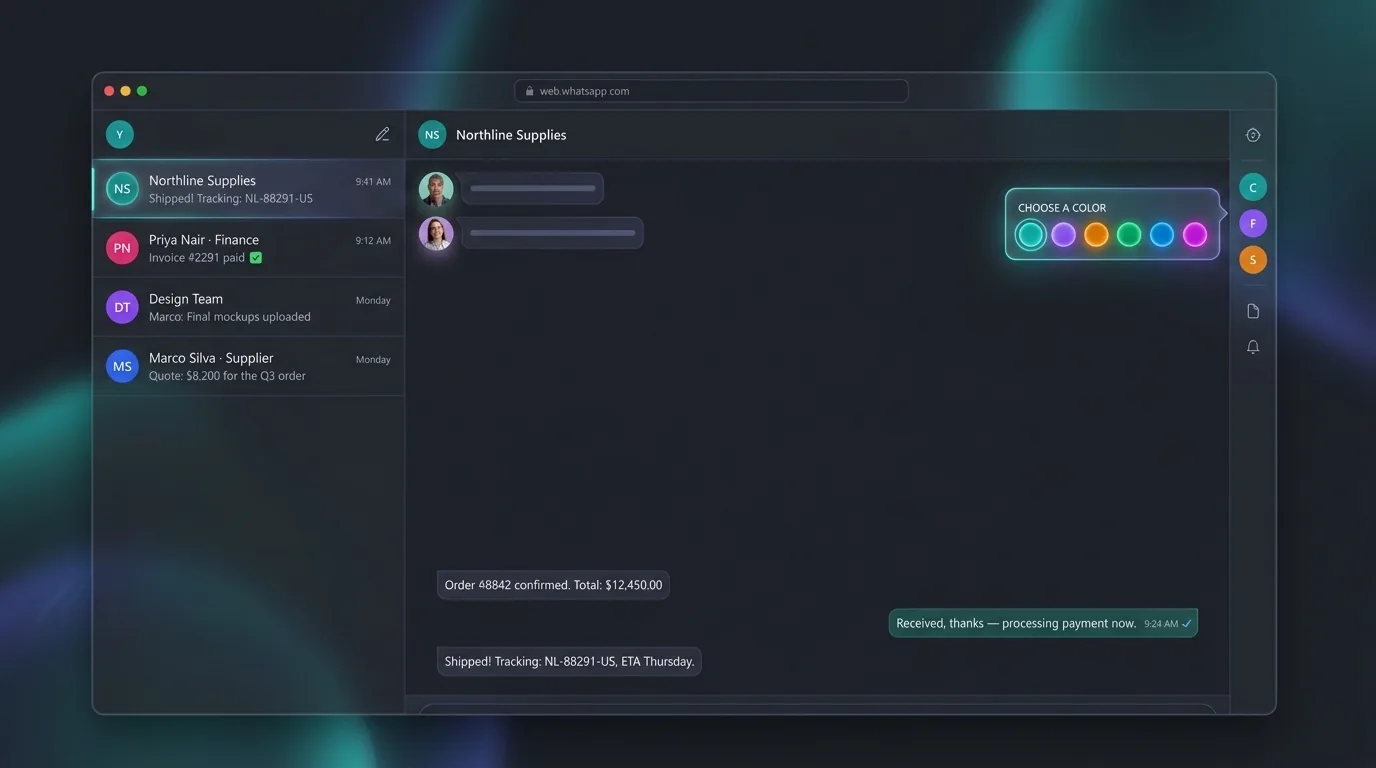
We're not building a parallel app that fights WhatsApp Web. Every feature below either extends something WhatsApp already has, or fills a gap we ran into ourselves. Here's the reasoning behind each one, not just the marketing bullet.
WACompanion mirrors WhatsApp's own Lists — All, Unread, Favorites, Groups, and any custom List you create yourself in WhatsApp — as single-letter, color-coded buttons in a scrollable sidebar, instead of leaving them buried in WhatsApp's cramped "▼" dropdown.
Our first version of this feature was a home-grown folder system layered on top of WhatsApp's chat list. It broke in a way that taught us something important: WhatsApp Web virtualizes its chat list, meaning only the rows currently scrolled into view actually exist in the page's DOM. Any tool that filters or hides chats by manipulating those DOM rows will silently fail on matches that aren't currently rendered — a chat you know exists just doesn't show up, with no error, no explanation. We tried patching around this with scroll-sweeps to force rows to render, and it still wasn't reliable enough to trust.
So instead of fighting WhatsApp's virtualization with more DOM tricks, we stopped and asked whether WhatsApp already solved this problem for us. It turns out it had: WhatsApp's own Lists feature (tap the "▼" next to Groups, then "+ New list") is driven by WhatsApp's own internal search and filtering, not by what happens to be visible on screen — so it doesn't have the virtualization problem at all. We dropped our custom folder system entirely and built coloring on top of WhatsApp's real Lists instead. It's a strictly more reliable foundation, and it means your Lists survive exactly as well as WhatsApp's own search does.
Make a List called "Clients" in WhatsApp itself, give it a color in WACompanion, and it shows up as a single teal "C" button in your sidebar from then on. Add a second List for "Family" in violet, a third for "Suppliers" in amber — each one instantly recognizable without reading a single word.
The free extension colors up to 5 Lists. The desktop app removes that cap — color as many as you create.

Write a reply once, save it as a template, and insert it into WhatsApp's own compose box with a single click — from any chat, any time.
If you've ever typed out the same business-hours message, pricing link, or "thanks, checking on this and I'll get back to you" reply for the fifth time in a week, you already know the problem. WhatsApp Web has no equivalent for regular accounts — "Quick Replies" only exists on the separate WhatsApp Business API product, which requires a Business account and its own tooling most people never set up. We wanted the convenience of canned replies without requiring anyone to switch account types or adopt a whole separate inbox platform just to reuse their own words.
Anyone fielding repetitive questions over WhatsApp — freelancers sharing rates and availability, small teams answering the same onboarding questions, landlords sending the same viewing instructions, or just someone tired of retyping their own address for the tenth delivery driver this month.
The free extension gets you 10 saved templates. The desktop app removes that cap entirely.
Attach a "remind me about this at [time]" note to any conversation. When it's due, a real operating-system notification fires — not a badge buried inside a browser tab you've already switched away from.
WhatsApp has no "snooze this and bring it back later" concept. In a busy inbox, a chat that scrolls past is easy to lose track of — you tell yourself you'll reply once you're free, and then it quietly becomes something you forgot entirely. We looked at building a "Snooze" feature on top of WhatsApp's own Archive (archive a chat now, automatically un-archive it at a set time), but held off shipping that specific approach because it depends on a live DOM sample of WhatsApp's per-chat archive control we hadn't captured and verified yet. Reminders solve the same underlying need today — "bring this back to my attention later" — without depending on that still-unverified piece.
Reminders use the same browser/OS notification permission WhatsApp Web already requests for its own message alerts, so there's nothing new to grant — if WhatsApp can already notify you, so can this.
A supplier messages you at 11pm asking about a delivery. You're not answering that tonight, but you also don't want it to vanish into your chat history. Set a reminder for 9am tomorrow with the note "confirm delivery slot" — you get pulled back to exactly that chat, at exactly the right time, with the context already there.
The free extension allows 5 active (not-yet-fired) reminders at once. The desktop app removes that cap.
Two smart filters that answer a question WhatsApp itself can't: "Needs Reply" surfaces chats where the last message is unanswered and isn't from you. "Awaiting Reply" flips it — chats where you sent the last message and you're the one still waiting.
With a large or mixed personal-and-work inbox, "who am I actually ignoring right now?" is a surprisingly hard question to answer just by scrolling — especially once a chat's been glanced at and marked read without actually being replied to. WhatsApp's own Unread filter only tells you what's technically unread; it says nothing about what you've already seen and quietly let sit. Nothing in WhatsApp Web answers "who's waiting on me" as a category of its own, so we built one.
Running either filter opens a floating picker listing exactly the chat names that currently qualify. Click one and WACompanion drives WhatsApp's own search box to open it — the same reliable mechanism the colored Lists use, so it works even for chats that WhatsApp hasn't rendered on screen yet. "Awaiting Reply" specifically works by reading the color of WhatsApp's own gray/blue message tick-marks to infer delivery and read state. That's a heuristic against WhatsApp's visible UI, not a documented API WhatsApp guarantees to us — we're saying that plainly rather than overselling its accuracy, and it's the kind of thing that could need adjustment if WhatsApp changes its own UI down the line.
Both filters compute their results live, at the moment you click them, by reading WhatsApp's current chat state — they don't build a hidden database of your conversations or run in the background between visits. Close the tab, and there's nothing left running or stored beyond what WhatsApp itself already has.
Both filters are free and uncapped on every plan — there's no list of results to cap, since nothing is saved.
One hotkey — Alt+Shift+Y by default, remappable at chrome://extensions/shortcuts — instantly blurs every chat name and message preview visible on screen. Press it again to un-blur.
This one came directly from a genuinely common situation: sharing your screen on a call, or demoing something at your desk, with WhatsApp Web open in another tab — and a personal or sensitive message notification pops into view mid-share, in front of everyone watching. Closing WhatsApp entirely every time you might share your screen is disruptive to your own workflow. We wanted a single keypress that solves it without requiring you to plan ahead.
This isn't a setting you toggle once and forget — it's designed to be fast enough to use in the two seconds before you hit "Share Screen," and just as fast to reverse the moment the call ends. No menus, no confirmation dialogs, just the hotkey.
Free on every plan, with no limit — there's nothing here to cap.
The extension adds search across every chat at once, not one conversation at a time. The desktop app goes further with a second mode: describe what a message was about and it finds it by meaning, even when you don't remember the exact words that were used. The model runs on your own device.
WhatsApp's native search is chat-scoped by default — you open a conversation, then search inside just that one. Its own multi-chat search exists but is strictly keyword-matching. We wanted two things regular WhatsApp Web doesn't offer: fast keyword search across every chat at once for everyone, and — for people who need it — a genuinely useful "I remember roughly what was said but not the exact words" search, without uploading a single message anywhere to make that work.
Semantic search specifically only ships in the desktop app, because it needs an actual embedding model running locally to understand meaning rather than just matching text — the desktop app downloads a small (~23MB) model once, after which the whole thing runs completely offline, on your device, with nothing sent to any server.
Keyword search (extension, free) finds messages containing the exact words you type — fast, simple, works everywhere. Semantic search (desktop app) understands intent, so a search for "delivery running late" can surface a message that actually said "the courier's stuck in traffic" — no shared words, same idea.
Every piece of data WACompanion creates — List colors, tags, templates, tagged messages, notes, reminders — lives in your browser's own local or sync storage. There's no WACompanion account, no login screen, and nothing about your chats or contacts is ever transmitted to a server we run.
This was a design constraint from day one, not something bolted on afterward. WACompanion exists to be a companion to WhatsApp — if making its own features work required its own account and uploading your chat data to our servers, we'd be introducing exactly the kind of privacy exposure the Privacy/Screen-Share Mode above was built to guard against. Local-first isn't a marketing claim here; it's the reason several other features are shaped the way they are, from plain-language search running as an on-device model instead of a cloud API, to reminders using the browser's own notification system instead of a server that pings you.
Because nothing syncs to a server we control, there's no cloud safety net if you clear your browser profile, reset your machine, or move to a new computer without exporting first. Settings → Export All Data saves everything above into a file you keep yourself; Import restores it on any device. That file is the only backup that exists — we'd rather say that plainly than let anyone assume a cloud copy exists somewhere it doesn't.
No sign-up flow before you can use anything. No password to lose. No breach notice to worry about from a database we hold, because there isn't one. The cost is that backup is manual — export before a big migration or a fresh install, same as you would for any local-only tool.
This applies identically to the free extension and the desktop app — it's an architecture decision, not a paid feature.
Free to start: 10 tags, 10 templates, 5 colored Lists and 5 active reminders. Move to the desktop app only if you actually hit a cap.